
Everything you need to run FlowFrame.
Install it, learn the editor, and take a graphic from the stage to the screen. FlowFrame is offline-first, so none of this needs an internet connection once the app is on your machine.
Prefer video? Watch the tutorials
Overview
FlowFrame is a motion-graphics studio and live-presentation engine in one cross-platform desktop app. You load images or type text, choose one of 127 animated templates, tune it live in a data-driven inspector, then either export a real video or push the graphic straight to an audience screen.
Get Started · 5 Steps to Live
- 1. Download FlowFrame: Install the native app for Windows or macOS without creating an account.
- 2. Open an Engine: Choose kinetic typography, audio reactivity, or a motion template.
- 3. Add Content: Paste lyrics, type text, or drop in images and video cutouts.
- 4. Connect Output: Route output to a second display, OBS Browser Source, or NDI.
- 5. Go Live or Export: Trigger real-time visual motion on screen, or export 4K video.
Under the hood a single deterministic engine drives everything: every frame is a pure function of time. That is why the live preview, the exported file and the audience output always agree. What you tune is what everyone sees.
- Motion library: 127 templates across twelve categories, from 3D and orbit to audio forms, audio scenes, flux and social carousels.
- Three workspaces: Stage (full-bleed canvas, floating panels), Deck (bottom template dock), or Studio (classic three-pane with a beat-marked scrubber). Your project carries across untouched.
- Audio-reactive: the engine listens to a mic or track, reads the BPM, and LIVE auto mode switches kinetic templates on the beat.
- Real export: MP4 (H.264), WebM (VP9), animated GIF, transparent PNG/APNG and transparent MOV, encoded entirely on your machine.
- Live presentation: an operator window plus a clean full-screen audience output, with Go Live to OBS and NDI.
- Offline & private: no account, no upload of your work, and the app keeps working with the network unplugged. See Offline & privacy for the short list of things it does send (licence and update checks, optional error reports).
Install
Download the installer for your platform, then run it. No account is required to open the app.
Windows
Run the .exe installer. The installer is code-signed by YES AND NO IDENTITY LTD, so the publisher name shows in the install prompt. On a brand-new release Windows SmartScreen can still show its blue "protected your PC" screen until the build has earned reputation; check that the publisher reads YES AND NO IDENTITY LTD, then choose More info → Run anyway. Requires Windows 10 or 11, 64-bit.
macOS
There are two macOS builds and they are not interchangeable: pick Apple Silicon for any Mac with an M-series chip (M1 or newer), and Intel for Intel-based Macs (most models from before late 2020). If you are unsure, open the Apple menu → About This Mac: a Chip line means Apple Silicon, a Processor line naming Intel means Intel.
Open the .dmg and drag FlowFrame to Applications, then double-click it. The macOS build is signed with a Developer ID and notarized by Apple, so the first launch only shows macOS's usual one-time check for apps downloaded from the internet; choose Open. If macOS ever says the app is damaged or from an unidentified developer, the download was interrupted or altered: delete it and download again from this page rather than bypassing the check.
xattr or other quarantine-stripping commands on FlowFrame; a genuine build does not need them.The editor
The top bar is grouped by job. In the middle, what you are making: Design (one graphic: a title, a lyric, a background, a lower third), Carousel (a multi-slide social post, see Carousel builder) and Present (running songs and cues live). Design and Carousel keep separate work, each with its own undo, so switching never mixes them up.
- Left of the bar: Frame (the FlowFrame logo, which is also Home), your plan, undo / redo, the design's name and the zoom control.
- Right of the bar: More (Browse all templates, Backgrounds, the Marketplace, saved looks, help, theme, layout and settings), Screens, Go Live with its settings caret, and Export.
Below it, three panes:
- Library (left): search across all 127 templates, suggestions for the words you typed, and categories with counts. Hover a template to see it move; drag one onto the canvas to add it as a layer. Browse all templates and Get more templates sit at the end of the list.
- Stage (center): the live preview, looping continuously. Drag photos straight onto it, double-click words to type in place, and zoom with Ctrl / Cmd + scroll or the Z tool.
- Inspector (right): the Layers list on top, then four tabs, Content, Style, Motion and Audio. Every section folds from its title (FlowFrame remembers which), and every control updates the preview in real time.
Three layouts suit different screens: Studio (the three panes), Stage (a full-bleed canvas with floating panels) and Deck (a bottom template dock for fast switching). On a large monitor the interface scales up by itself; set it under More › Appearance. Full-screen surfaces open as overlays; Escape always closes them, and ⌘K / Ctrl+K reaches everything from anywhere.
Frame, the living logo
The logo in the top-left corner is Frame. It blinks and follows your cursor, squints while a design loads, fills its bar as an export renders, shows a red dot while you are live, and hops when something finishes. Hover it to read what it is doing; it never pops up on its own. Turn the animation off in More › Appearance › Animated logo (export progress and the live dot stay).
Frame & timing
Pick an aspect ratio (16:9, 4:3, 1:1, 4:5 or 9:16) and a loop length (5–30 seconds). Both reflect immediately in the preview and in the export dimensions. The output renders at true resolution, never upscaled from the preview.
Templates & motion
The library holds 127 templates in twelve categories. The sidebar, inspector and engine are all driven by one registry, so every template exposes its own controls automatically. Drop your own images into the media slots and they flow straight through the card-based templates.
| Category | Count | What it's for |
|---|---|---|
| 3D & Perspective | 10 | Depth, tilt and camera moves on image cards |
| Isometric | 3 | Clean isometric stacks and grids |
| Orbit | 5 | Cards circling a centre point |
| Carousel & Flow | 21 | Sliding, flowing card sequences, including multi-slide social posts |
| Grid | 6 | Rhythmic grids of images |
| Spotlight & Focus | 2 | One subject lit against the rest |
| Reveal & Wipe | 1 | Masked reveals and wipes |
| Stack & Scatter | 7 | Stacking, scattering, gathering |
| Kinetic Typography | 47 | Lyric and title motion, including 3D type |
| Audio Forms | 11 | Typography that becomes equalizers and waveforms; reacts when audio is on |
| Audio Scenes | 9 | Full-frame scenes that breathe when quiet and react to the beat |
| Flux | 5 | Type as texture: slats, halftone dots, flowing strokes |
Controls come in a handful of types: sliders, segmented pickers, toggles, colour fields and steppers. The inspector renders each one automatically, and Reset settings restores a template's defaults. Per-template parameters are preserved when you switch templates, and undo / redo covers template, params, media and text.
Beyond the raw templates: layers stack templates, photos, words and shapes in one design; a built-in background catalog sits behind everything; and the presets gallery shows finished looks as live samples you can start from. Found a look you love? Export it as a preset (a tiny .flowframe.json file) and import it into another FlowFrame to carry on where someone left off.
Layers & filters
Every design is made of layers you can take apart. Add words, a photo, a shape or any template from + Add above the inspector, or drag a template card onto the canvas.
- Drag, resize and rotate layers right on the canvas; the Layers list sets what is in front.
- Hide or lock a layer; select it on the canvas or in the list to edit it in the inspector.
- Double-click words to type in place; the Style tab puts type and colour first.
- Photos keep their own shape; Replace swaps one without losing its place.
- Exports, carousel slides and every live output (program window, NDI, audience screens) render all the layers.
In Design the Layers list starts folded, so the classic flow stays simple: pick a template, adjust it, export or go live. In Carousel it starts open.
Filters
Content › Filter grades the whole design with one of eleven looks (Warm, Cool, Teal & Orange, Mono, Noir, Vintage and more) at the strength you choose. Import .cube… brings in any 3D LUT you already use; it joins My filters for every project. The grade applies to the Studio, exports, carousel slides and the live outputs alike.
Zoom
Ctrl / Cmd + scroll zooms at the pointer; the zoom control beside the design's name steps in and out or fits the frame again. Press Z for the zoom tool: click to zoom in, Alt-click to zoom out, or drag a box round the part you want. On a carousel, click a slide's name for a close-up of that slide.
Kinetic typography
The 47 kinetic-typography presets turn lyrics and titles into motion, from marquees and bursts to full 3D type (Type Knot, Type Cube, Type Tunnel, Type Sphere) and shader-driven effects (Liquid Type, Venetian Blinds, Barcode Glitch, Smoke Dissolve). Type or paste text, choose a preset, and let the words drive the frame.
- Presets: Marquee Wall, Star Marquee, Wave, Vertical Ticker, Kinetic Stack, Type Burst, Echo Trail, Chroma Shift, Word Tunnel, Neon Glow, Waterfall, Cylinder Marquee, Triangle Tunnel, and more.
- Type: six bundled display faces (grotesque, serif, mono, rounded, condensed, italic), with weight and case controls.
- Fill: solid, outline, alternating, or image, where footage shows through the letters.
- Backdrop: a solid colour, or an uploaded image behind the animated text.
Fonts load before the first render and before every export, so what you preview is exactly what renders in the file.
Media & text
Add images by clicking a slot to browse, or drag and drop onto the slots or straight onto the stage. Reorder with the drag handle, add or remove slots with the stepper, and clear everything in one click. Large images are downscaled to a sane maximum texture size automatically, and empty slots show placeholder cards so the stage always animates.
Everything autosaves. Title, template, params, timing, frame, text and the image blobs themselves persist locally and restore on reload. Songs, scene styles and theme packs live in a local SQLite library. None of it is uploaded anywhere.
Lyrics → animation ideas
Open the Lyric clip pack from the command palette (Ctrl / Cmd + K), or choose Lyrics on the launcher to work from the Presenter, which can download a pack too. Paste a song with a blank line between sections, and FlowFrame reads it and suggests a template for every line, each with a reason and a length.
- Hover any line to preview it live with your own words, colour and speed.
- Tick the lines you like, choose video or image and a quality from 720p to 2K.
- Hit Download pack to get them all at once, or Use to drop one straight onto the stage.
It is fully offline and heuristic, not a cloud AI, so it works with the network unplugged and nothing leaves your machine.
Carousel builder
Choose Carousel in the top bar (or Build a carousel on the launcher). FlowFrame asks how many slides and which shape (4:5 or 1:1), then lays every slide side by side on one board, so you design the whole post at once. Your single design waits in the Design tab.
- Templates picked on the board start see-through, so photos and colour behind them show; give one a background any time.
- New layers land inside one slide (the one in view, or the selected layer's); drag them across the dotted joins to run a design over several slides.
- The slide strip along the bottom shows every slide; drag its top edge to resize it, or fold it to a bar. Click a slide's name for a close-up.
- One filter grades every slide the same way.
- Export makes one file per slide, as pictures (PNG / JPG) or short clips (MP4 / GIF), numbered in order and ready to post.
Marketplace
The marketplace lists templates beyond the ones built into the app, each as a .fftemplate package you can preview, add to the app and keep using offline. Hover a card to watch it move; tick as many as you like.
- Add to FlowFrame opens the app and adds your picks to its library. If the app is not signed in yet, it signs in as the same account for you.
- Download files saves the packages instead. To use one, double-click it, drag it onto the FlowFrame window, or choose Marketplace › On this device › Import downloaded templates.
- Inside the app, More › Marketplace browses, downloads and adds what you own without leaving FlowFrame.
FlowFrame checks every package against your marketplace account once: a file only joins your library when it is a version your account may download, and its signature is verified. After that it works with the internet off. These need FlowFrame 5.0 or newer.
Exporting video
Open Export, pick a format and resolution, and FlowFrame renders each frame offscreen at true output resolution, then feeds it to the encoder. Export is frame-accurate and independent of playback speed, so the file matches the preview exactly. The progress bar stays responsive and Cancel genuinely aborts.
| Format | Engine | Requirement |
|---|---|---|
| MP4 · H.264 | WebCodecs + mp4-muxer | Chromium-based engine with H.264 encode |
| WebM · VP9 | WebCodecs + webm-muxer | Chromium engine; real-time fallback otherwise |
| GIF | gifenc in a Web Worker | Works everywhere; capped to 720px |
| PNG · transparent | Canvas alpha export | Still or animated APNG with a real alpha channel |
| MOV · transparent | Alpha render + desktop save | Full-resolution alpha video; desktop app only |
Live output
FlowFrame can drive a projector or LED wall directly, and it can contribute graphics into someone else's live pipeline. You compose privately in the editor, hit Go Live, and only then does the current graphic reach the program feed.
Audience output
Open the full-screen audience output on a second display. The operator window stays on your laptop; the audience sees only the clean graphic.
OBS Browser Source
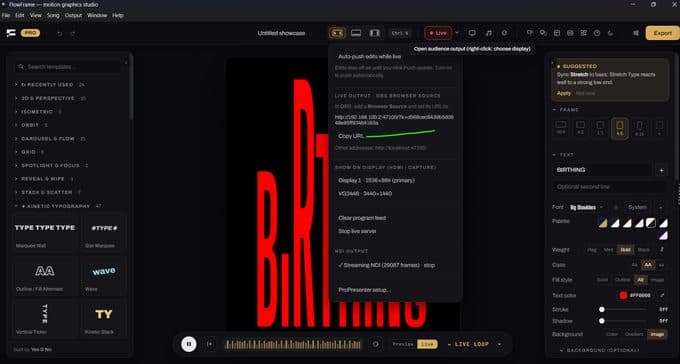
Go Live starts a small local server. From the caret next to Go Live choose Copy URL, then in OBS add a Browser Source with that address (for example http://192.168.1.5:47100/) sized to your canvas. The program page renders whatever you push live over a WebSocket, with a transparent background so OBS composites it over anything beneath.
HDMI / capture card
Choose Show on display to send the program feed full-screen to a chosen display. Plug that HDMI into a projector, or into a capture card feeding a switcher or a ProPresenter video input.
NDI
FlowFrame's direct NDI output streams frames straight to the NDI runtime over your LAN, with no capture card and no extra cables. ProPresenter, OBS or EasyWorship then see a source named after your computer, e.g. "FlowFrame". Walkthroughs for each below.
Using ProPresenter
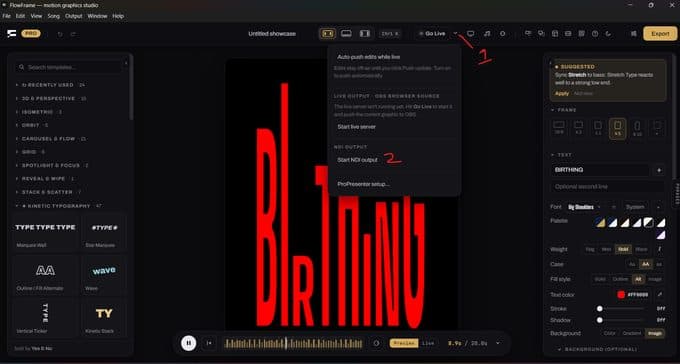
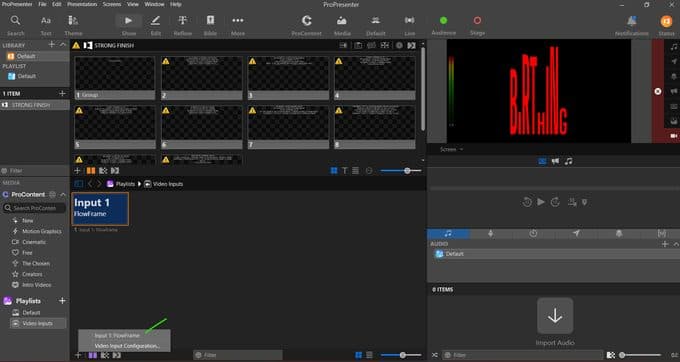
- Open FlowFrame, click the dropdown next to Go Live, and select Start NDI output. This automatically starts the live server. Then click Go Live.
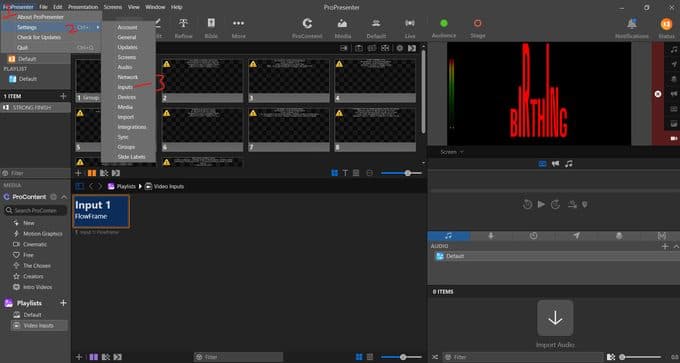
- In ProPresenter, open the app menu → Settings → Inputs.
- Click the + button to add a new video input. FlowFrame shows up in the list under your computer's name. Select it.
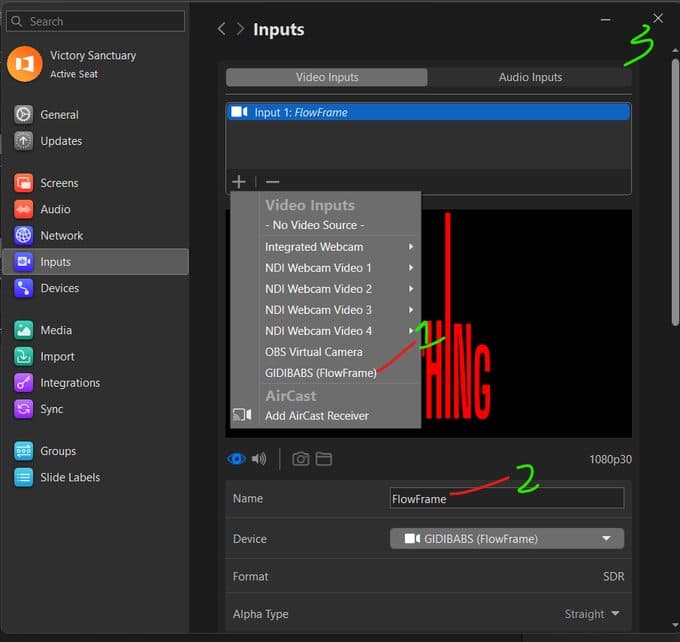
- You'll see FlowFrame's live preview appear right there in the Inputs screen, confirming the connection is working.
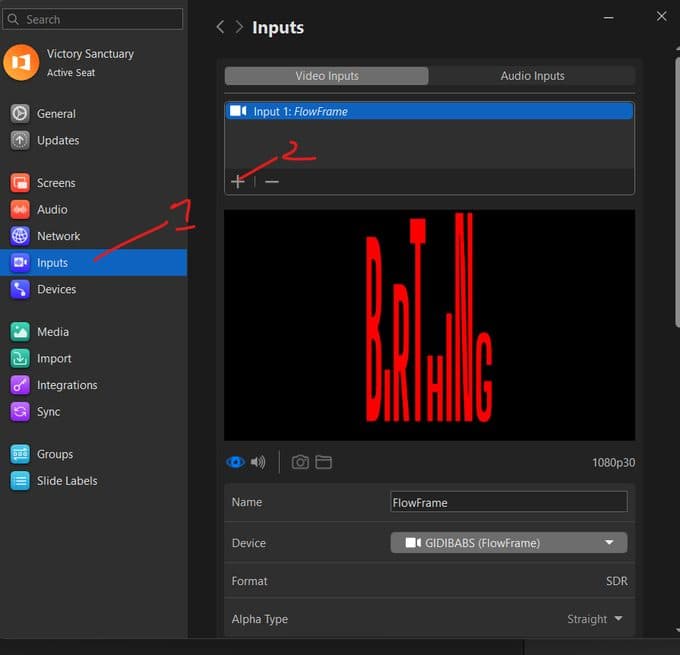
- Go to your Playlist area, open Video Inputs, click +, and select the FlowFrame input you just added. It's now ready for your show.
Using OBS: Browser Source
- In FlowFrame, click Go Live, then open the dropdown next to it. Under Live Output · OBS Browser Source, click Copy URL.
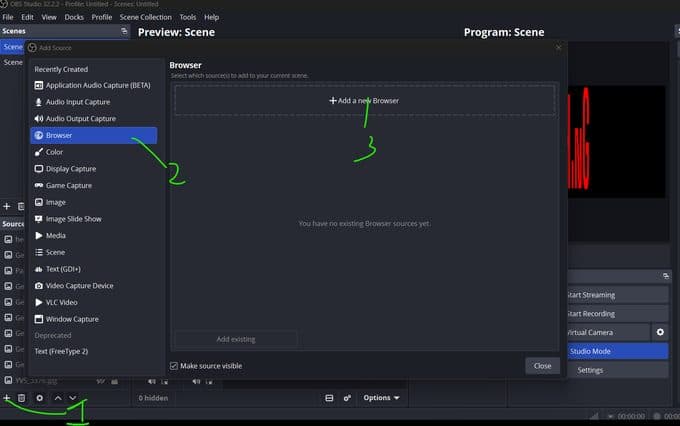
- In OBS, click + under Sources, choose Browser, then Add a new Browser.
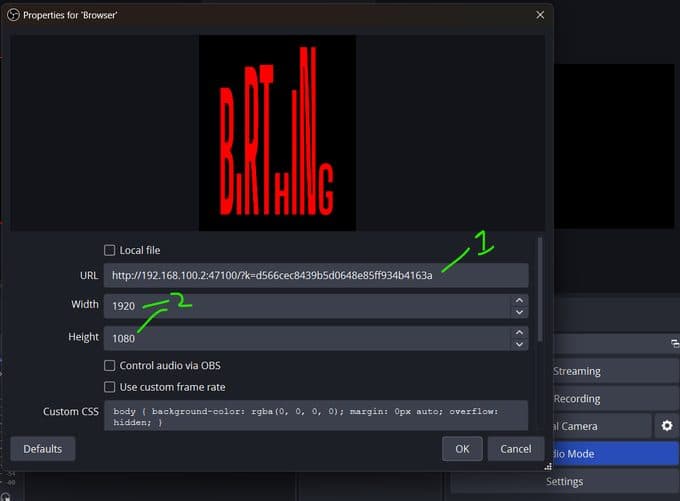
- Paste the copied URL into the URL field, and set Width and Height to match your screen resolution. 1920×1080 is just the default shown here; use whatever fits your setup.
Using OBS: Window Capture
An alternative if you'd rather capture FlowFrame's output window directly.
- In FlowFrame, right-click the display/output icon next to Go Live and choose a display to send the clean output to.
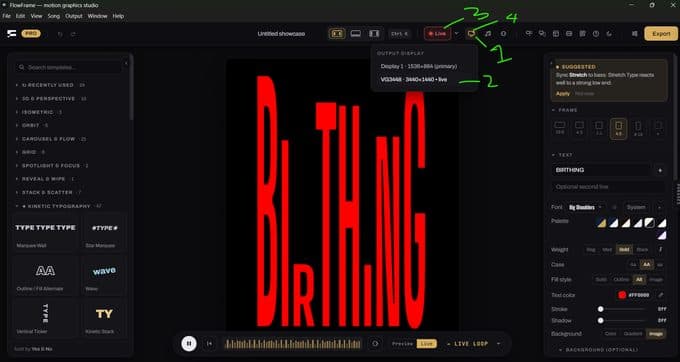
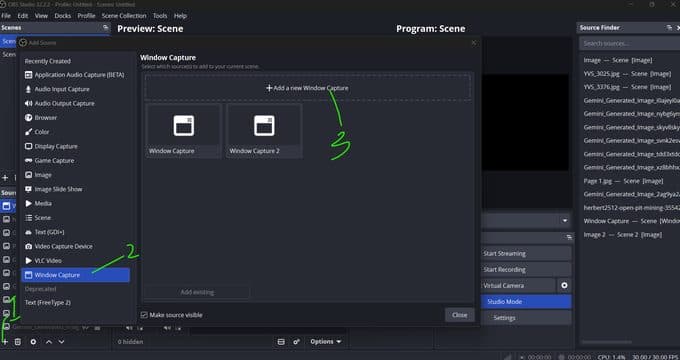
- In OBS, click + under Sources, choose Window Capture, then Add a new Window Capture.
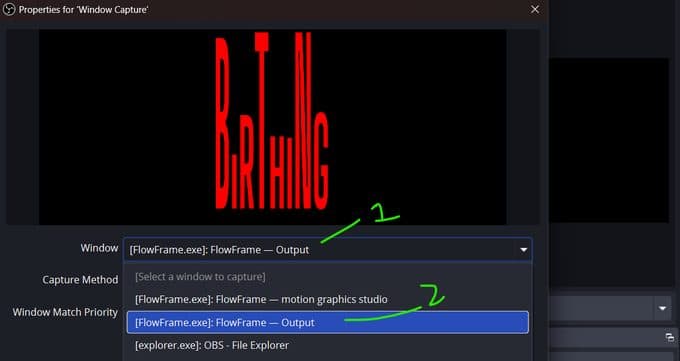
- In the Window dropdown, choose [FlowFrame.exe]: FlowFrame — Output (on a Mac, the window named FlowFrame — Output under FlowFrame), not the "motion graphics studio" editor window.
Using EasyWorship
- Open FlowFrame, click the dropdown next to Go Live, and select Start NDI output. Then click Go Live before moving on.
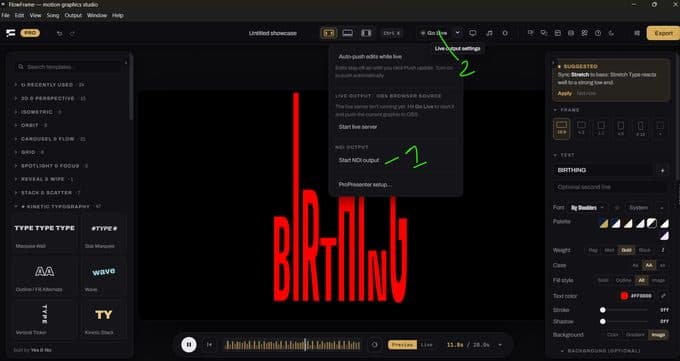
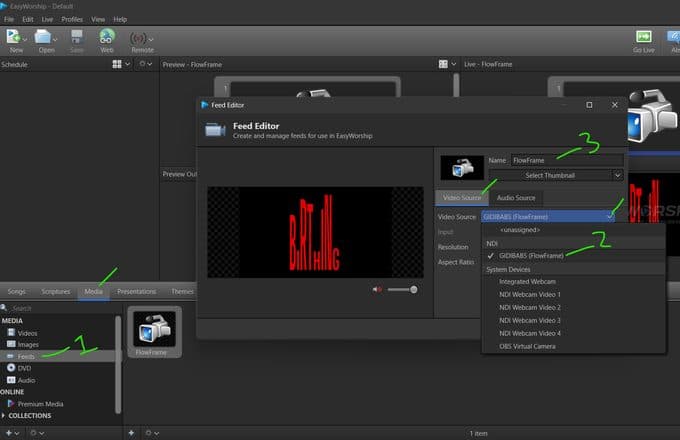
- In EasyWorship, go to Media → Feeds, create a new feed, and set Video Source to your FlowFrame entry under the NDI section. Name it "FlowFrame". It's now in your media library, ready to drag into your schedule.
LIVE auto mode
Flip LIVE to auto and FlowFrame runs itself: it cycles through the kinetic templates on its own, switching on the beat it hears, with the current BPM shown in the LIVE pill. Ideal for pre-service walk-in loops and DJ-style sets.
ProPresenter
FlowFrame can find ProPresenter on your local network automatically (a no-internet, LAN-only connection between the two machines), or you can enter the host and port yourself. Test the connection, then pick the Prop that holds FlowFrame's video input. FlowFrame reveals that Prop on Go Live and hides it on Clear, so the ProPresenter operator keeps control at all times.
Offline & privacy
FlowFrame is offline-first by design. Fonts, the Three.js engine, the muxers and the GIF worker all ship inside the app. Your songs, styles and images live in a local SQLite library and IndexedDB, and none of your work is uploaded anywhere.
You can prove it: open the app once, disconnect the network, and reload. Everything keeps working, including export and live output. The app does use the network for three things, none of which it needs in order to run: checking a paid licence (at activation, then quietly every few hours, working offline for weeks in between), checking for updates at launch, and anonymous error reports when something crashes (queued locally, sent when online, and switchable off in Settings → Privacy). The name and email step happens once, on the download page, before the app is ever on your machine. Pushing a graphic to an OBS Browser Source or NDI output stays on your own LAN. The full list lives on the Privacy & Terms page.
Licensing & plans
FlowFrame comes in three plans: Free, Pro and Team. Every plan uses the same installer: what changes is what your license unlocks.
- Free needs no account and no key. Install it and start editing; it covers the basic Kinetic Typography and Carousel tools with the starter template set. Exports at 720p have no watermark; 1080p exports carry a faint FlowFrame watermark tiled across the frame. Live presentation (Presenter, projector, OBS, NDI) and every Pro template work on Free too, both with the watermark, until you upgrade.
- Pro unlocks the full template library (including Flux, Audio Forms and Audio Scenes), audio links on every slider, 4K export, and commercial use, all without the watermark, on exports and live output alike.
- Team is everything in Pro across five seats, with priority support and beta access, for churches, agencies and organizations.
Activating: checkout confirms your order by email with a reference number, then sends your license key in a follow-up email. Open FlowFrame, go to Settings → License, and paste your key to activate. Once active, the license binds to your computer; if you replace your machine, you can deactivate the old device from Settings → License yourself and activate the new one, or contact support and we will move it for you. Team seats can be reassigned the same way.
Current prices are on the pricing page, and the fine print is on the Privacy & Terms page.
Keyboard shortcuts
| Action | Shortcut |
|---|---|
| Command palette (templates, presets, screens, tools) | Ctrl / Cmd + K |
| Zoom at the pointer | Ctrl / Cmd + scroll |
| Zoom tool (click in, Alt-click out, drag a box) | Z |
| Type into words on the canvas | Double-click |
| Play / pause | Space |
| Undo | Ctrl / Cmd + Z |
| Redo | Ctrl / Cmd + Shift + Z or Ctrl / Cmd + Y |
| Go Live | Ctrl / Cmd + Return |
| Clear live feed | Ctrl / Cmd + Backspace |
| Close any overlay or output window | Escape |
Troubleshooting
Windows SmartScreen warns on launch
The installer is signed by YES AND NO IDENTITY LTD; SmartScreen can still warn on a release that is only days old. Check that the publisher line names YES AND NO IDENTITY LTD, then choose More info → Run anyway. If the publisher is missing or different, do not run it: download again from this page.
macOS says the app can't be opened or is damaged
A genuine FlowFrame build is notarized and opens with a normal double-click. That message means the download is incomplete or was altered in transit. Delete it, download again from this page and re-open the .dmg. Do not clear the quarantine flag with xattr; it disables the very check that protects you.
A Mac on the network can't see FlowFrame's NDI or OBS output
macOS 15 and later ask before an app may use the local network. If you declined, or the prompt never appeared, open System Settings → Privacy & Security → Local Network, turn FlowFrame on, then restart NDI output from the dropdown next to Go Live.
MP4 export is disabled
MP4 needs a Chromium-based engine with H.264 encode. On a browser without it, MP4 is disabled with a note, WebM uses a real-time fallback, and GIF always works.
Export looks different from the preview
It shouldn't: rendering depends only on time. If a font looks wrong, make sure it finished loading; FlowFrame waits for fonts before every export, so this is rare.