
Tutorials
Learn FlowFrame in short videos, from your first clip to live lyrics.
14 videos · Same steps on Windows and Mac, with shortcuts for both (Ctrl K / ⌘K)
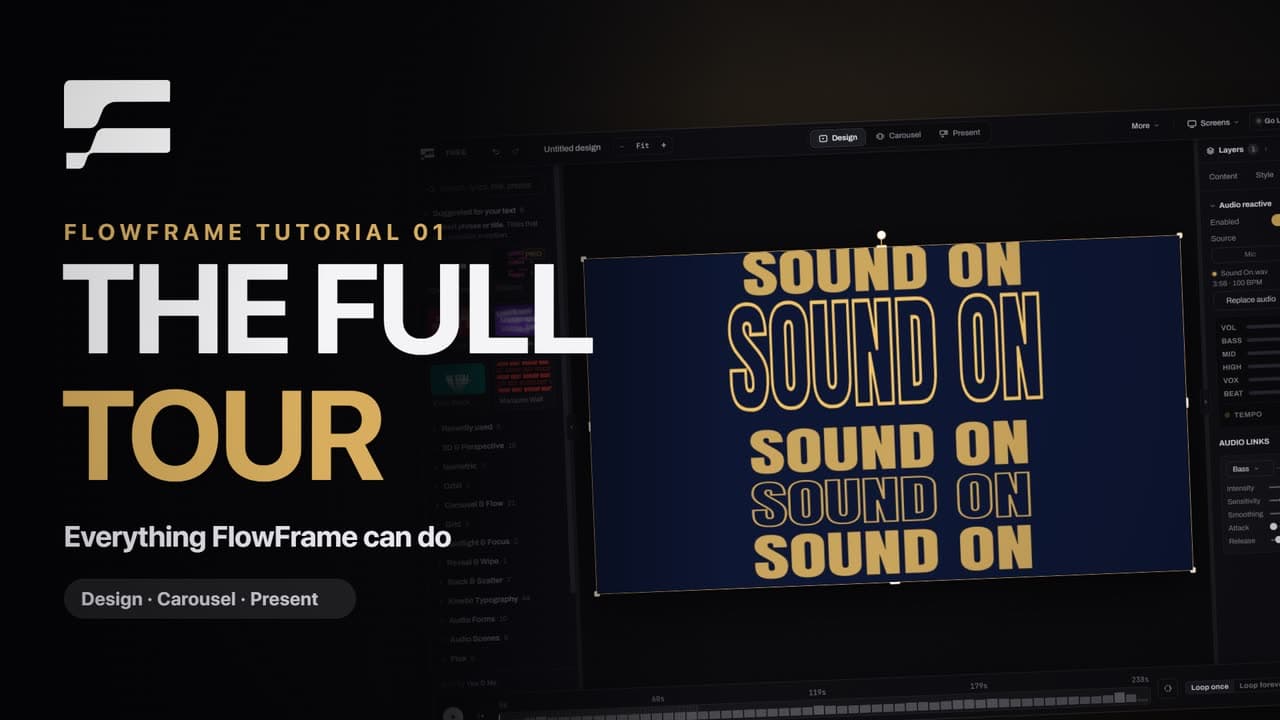
The full tour
Tutorial 01Length 3:56
Everything FlowFrame does in one video: start from a template, add your words, photos and music, build a carousel, present lyrics live and export. It all renders on your own computer.
Chapters(8)
More tutorials
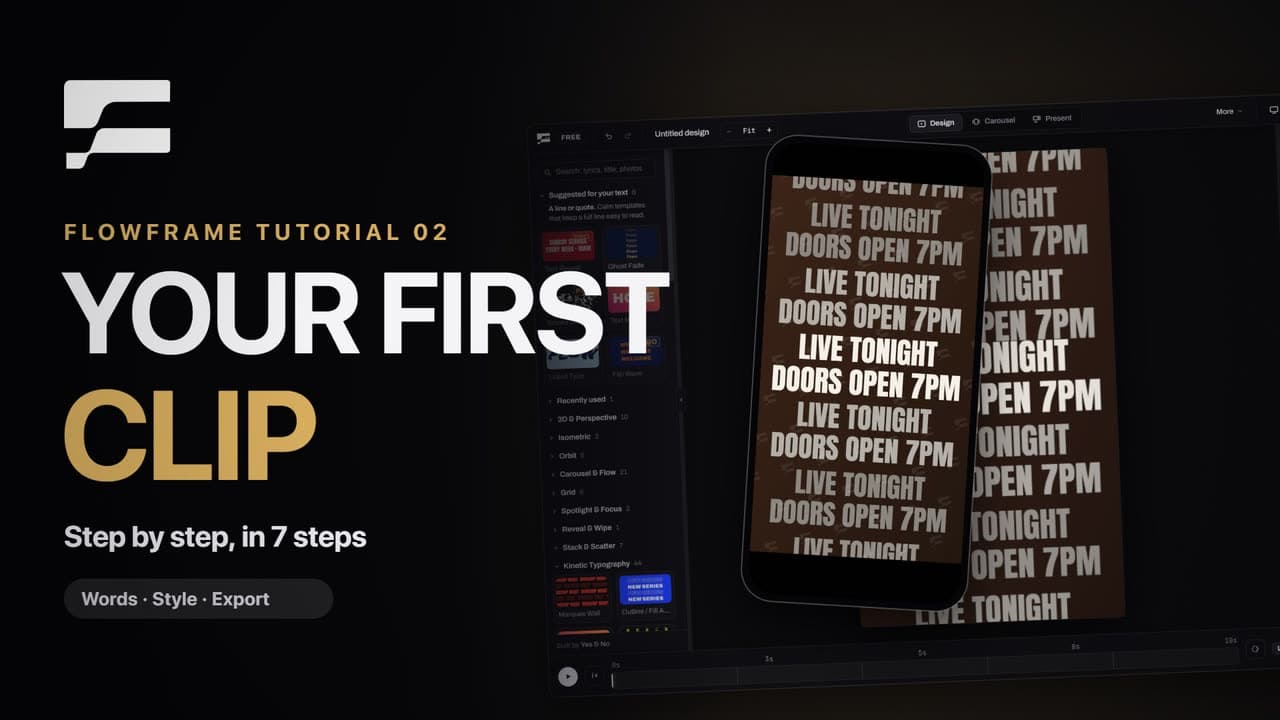
Tutorial 02Length 1:49
Your first clip, step by step
Make a moving Instagram Story in seven steps: pick a template, type your words, switch to 9:16, choose a palette, a font and a background, set the length and export an MP4.
Chapters(6)
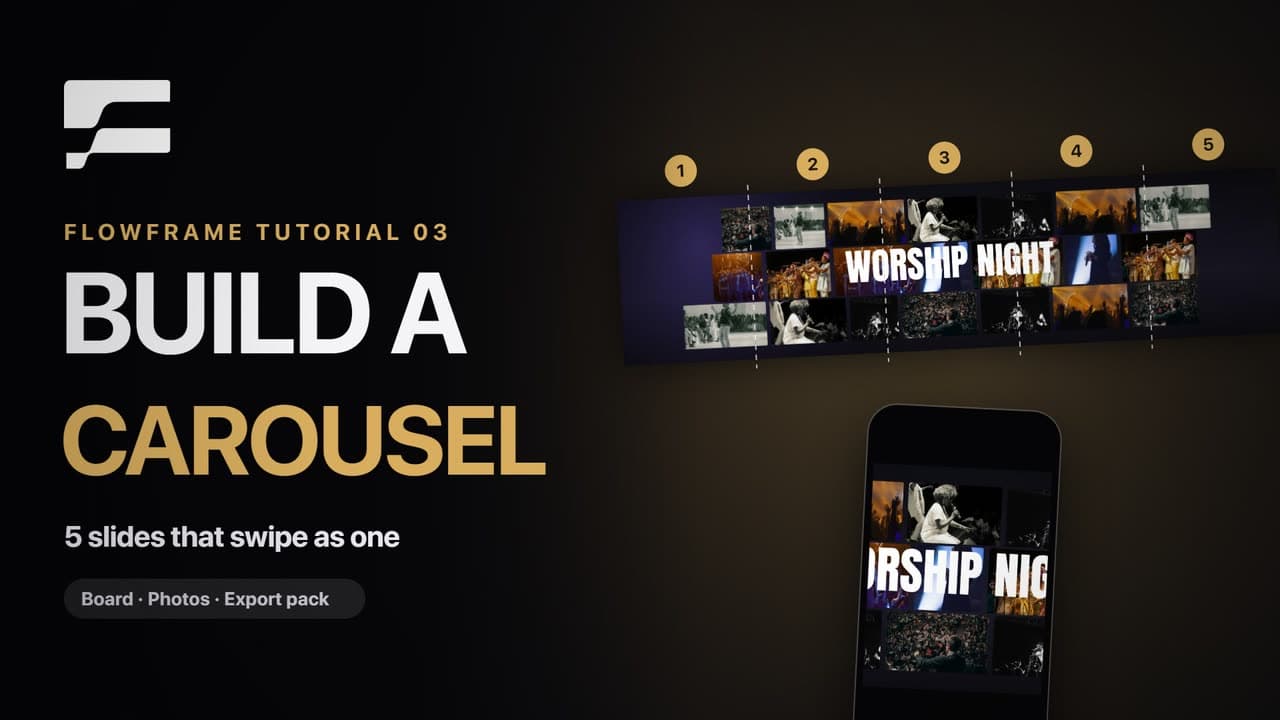
Tutorial 03Length 1:16
Build a carousel
Five slides on one long board, with photos and a title running across the joins so the post swipes as one picture. Export saves one numbered file per slide in a single zip.
Chapters(5)
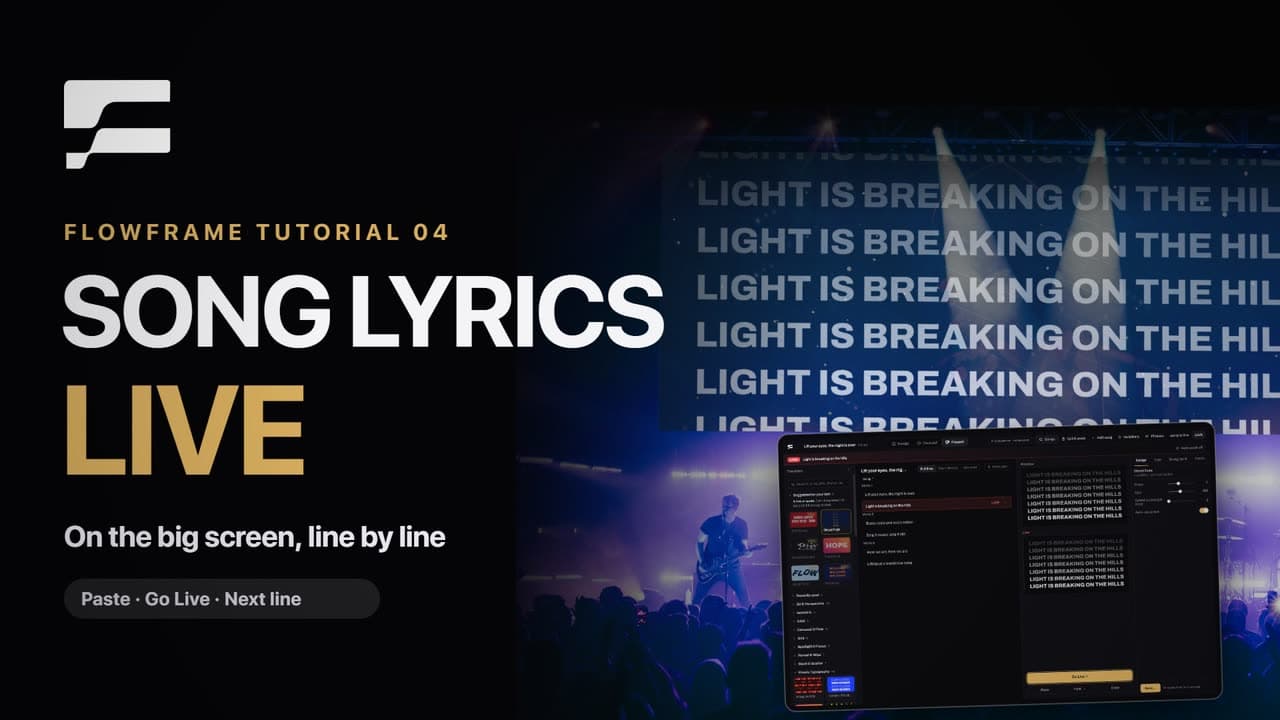
Tutorial 04Length 1:12
Present song lyrics live
Paste a song and every line becomes a cue. Go live, send the next line with the down arrow and Enter, jump to any line with Ctrl J (⌘J on a Mac), and use Blank and Clear between songs.
Chapters(4)
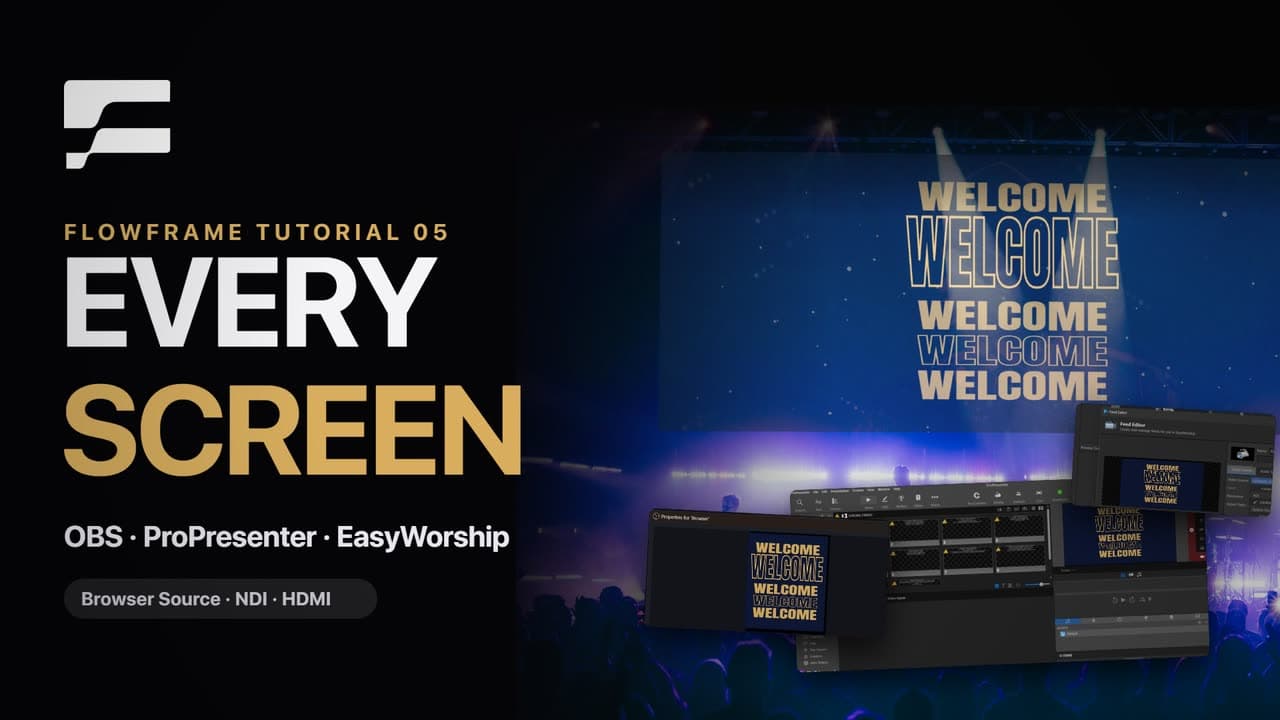
Tutorial 05Length 1:15
Send FlowFrame to OBS, ProPresenter and EasyWorship
Everything starts at the arrow next to Go Live: add FlowFrame to OBS as a Browser Source, show it on a projector or TV, and send it over NDI to EasyWorship and ProPresenter.
Chapters(4)
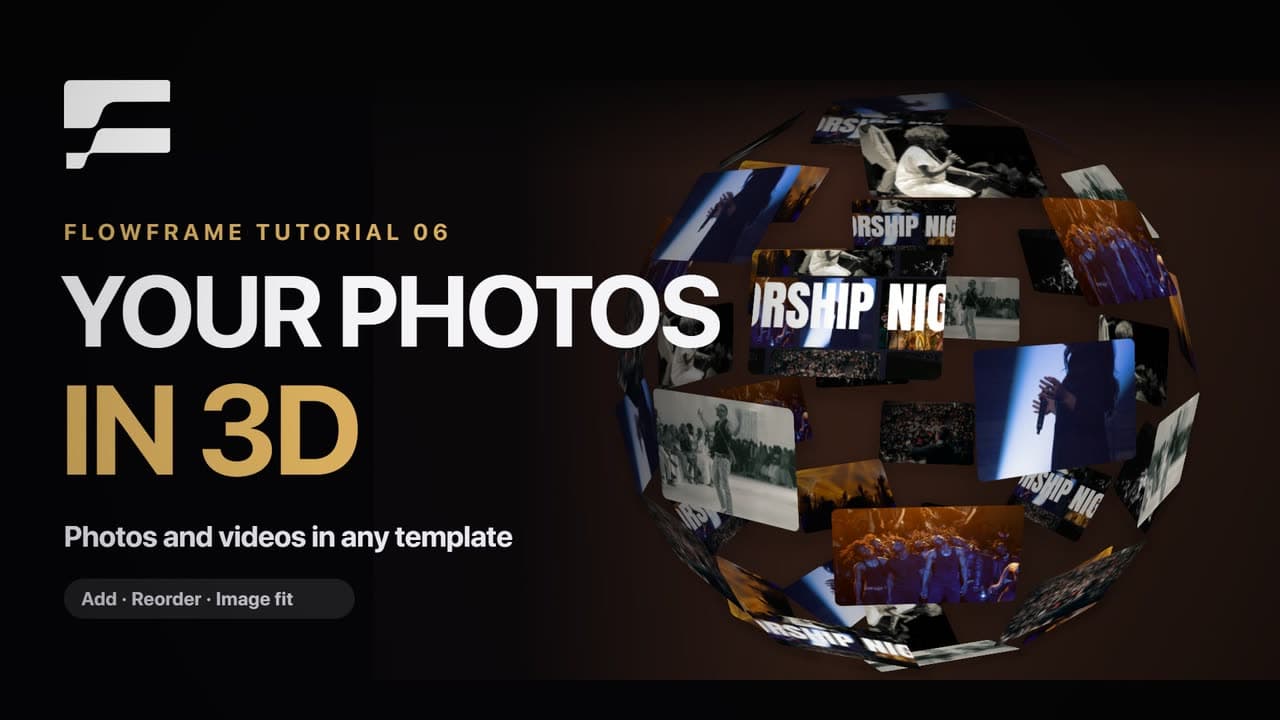
Tutorial 06Length 1:00
Your photos and videos in 3D templates
Swap the sample photos for your own: add several at once, drag to reorder, replace one with a video clip that loops in its card, and choose how each picture fits.
Chapters(4)
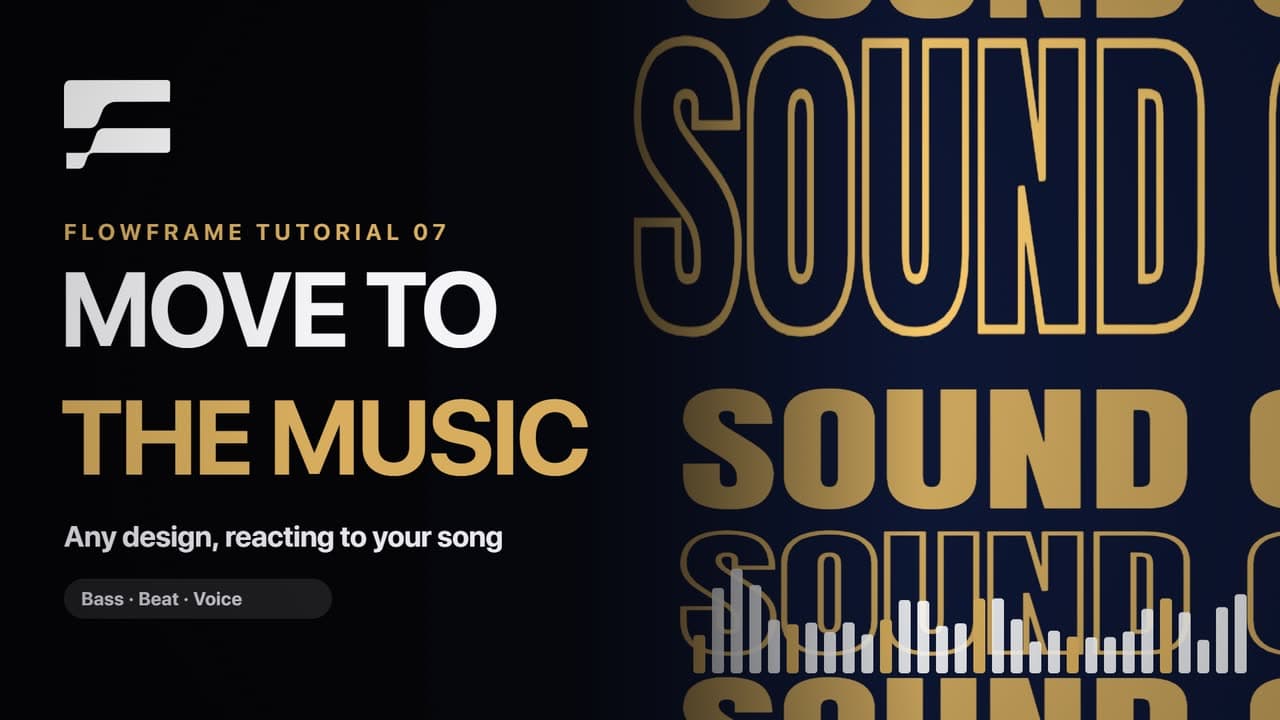
Tutorial 07Length 1:08
Make it move to your music
Turn on Audio reactive, load a song and link a slider to the bass so the design moves with it. Switch to Mic for a live band, and export with the song as the soundtrack.
Chapters(4)
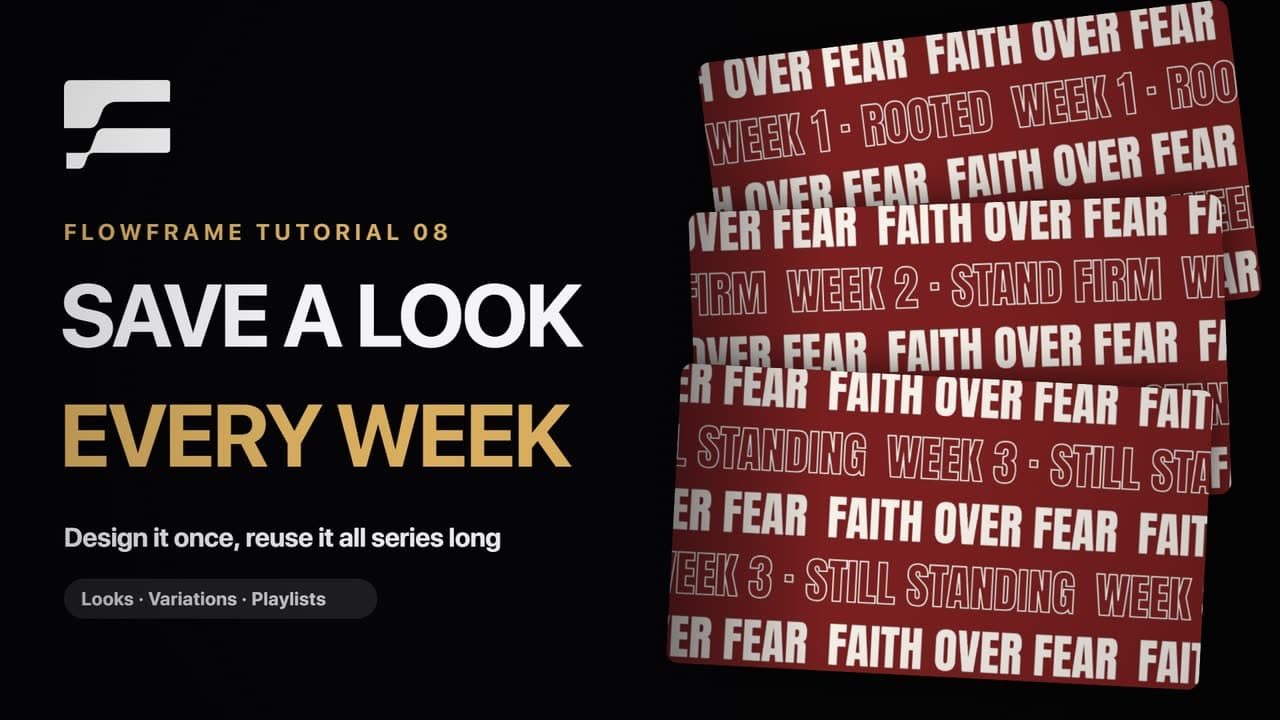
Tutorial 08Length 1:07
Save a look and reuse it all series long
Save a look once and bring it back each week with new words. Share it with your team as a file, and keep variations and playlists ready for the Presenter.
Chapters(3)
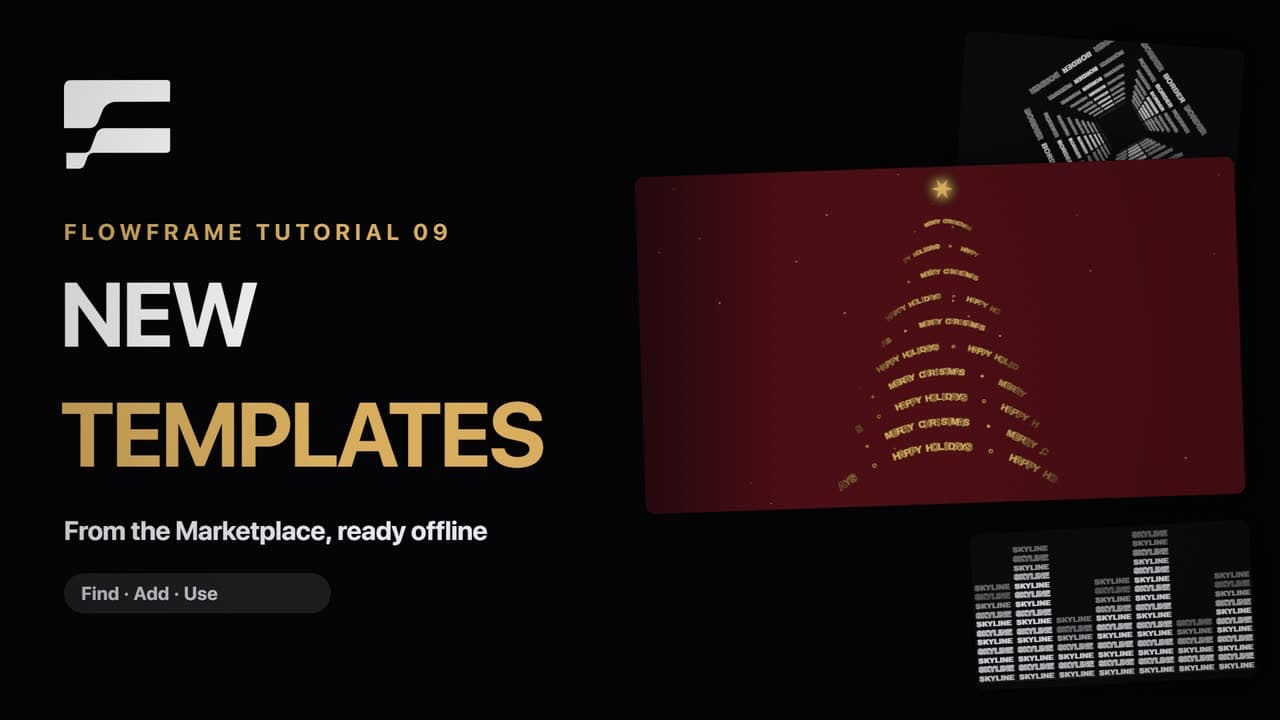
Tutorial 09Length 1:12
New templates from the Marketplace
Preview templates in the app, get them on the FlowFrame website, then sign in under Owned with the same email to download them. They stay on your computer and work offline.
Chapters(4)
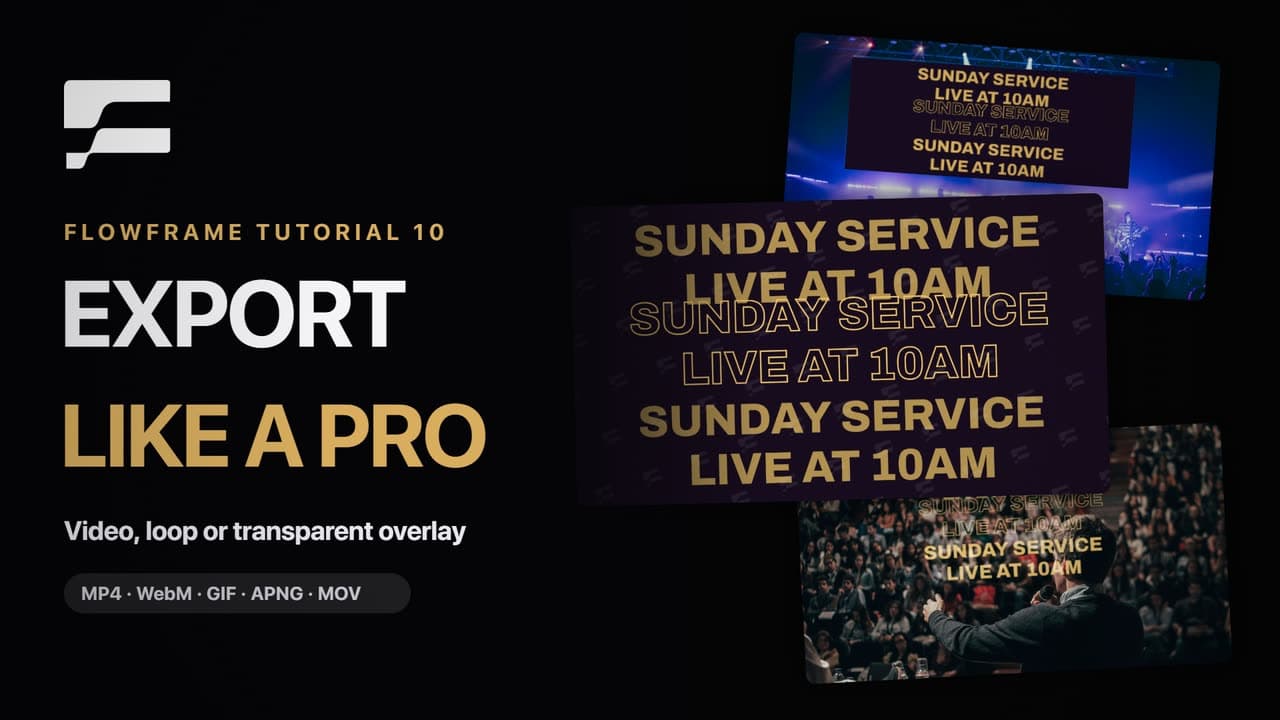
Tutorial 10Length 1:17
Export like a pro
Export MP4, WebM or GIF, or a see-through APNG or ProRes 4444 MOV for overlays. Pick the size, 30 or 60 fps and how many loops; it all renders on your computer.
Chapters(4)
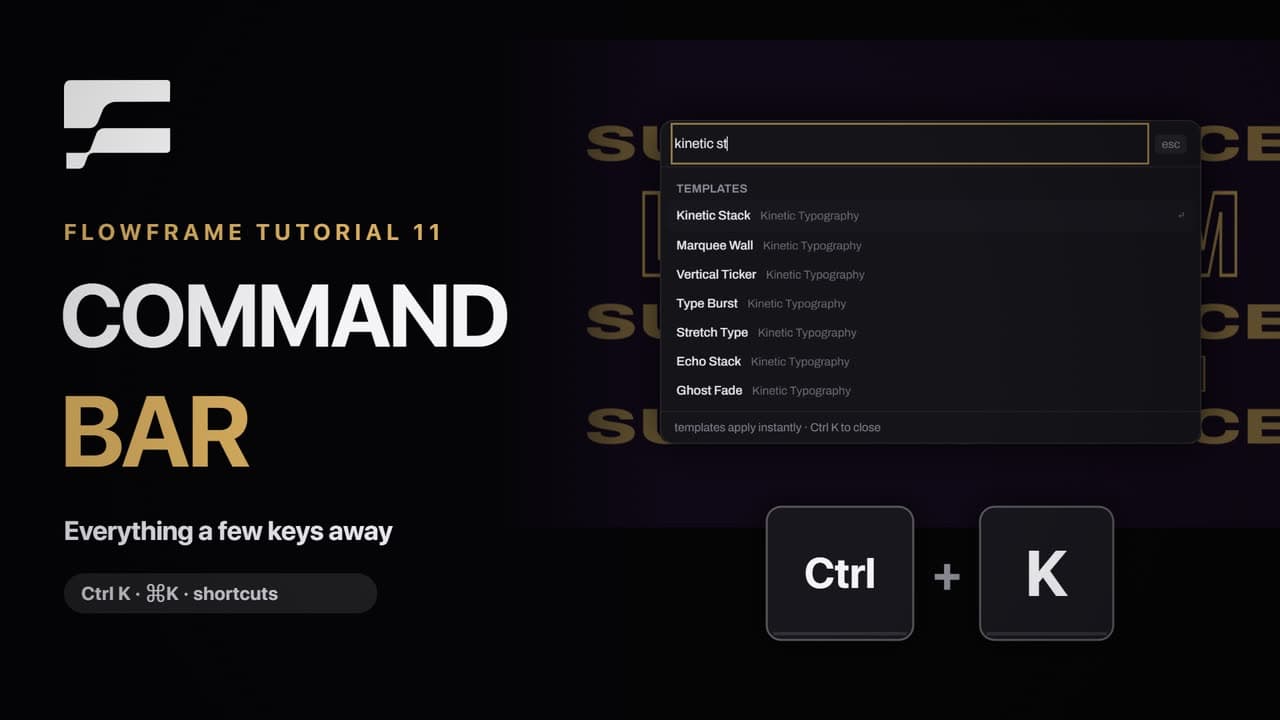
Tutorial 11Length 1:12
The command bar and shortcuts
Press Ctrl K (⌘K on a Mac) to apply a template by name, run an action or switch the layout. Then the everyday shortcuts, and how to change them.
Chapters(4)
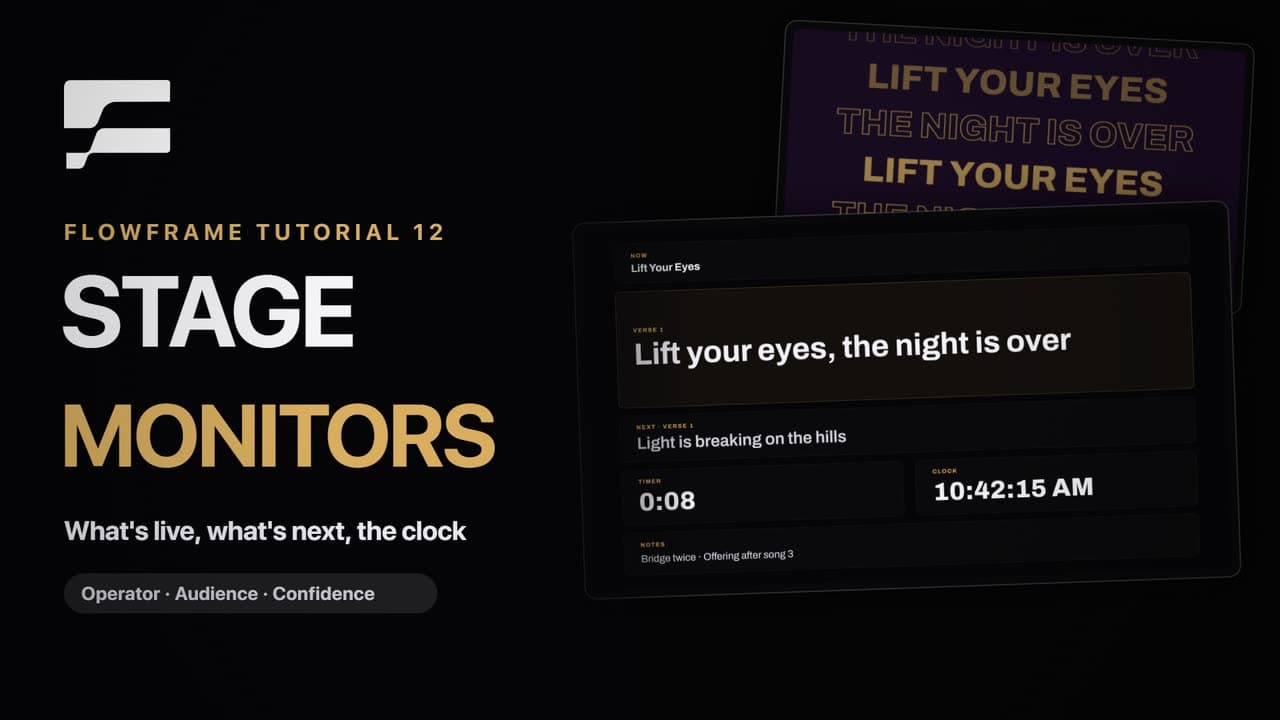
Tutorial 12Length 1:17
Stage and confidence monitors
Give each screen a role in the Output Manager, then open a confidence monitor for the stage: it shows the live line, the next one, a timer, the clock and your notes, and follows every line when you go live.
Chapters(4)
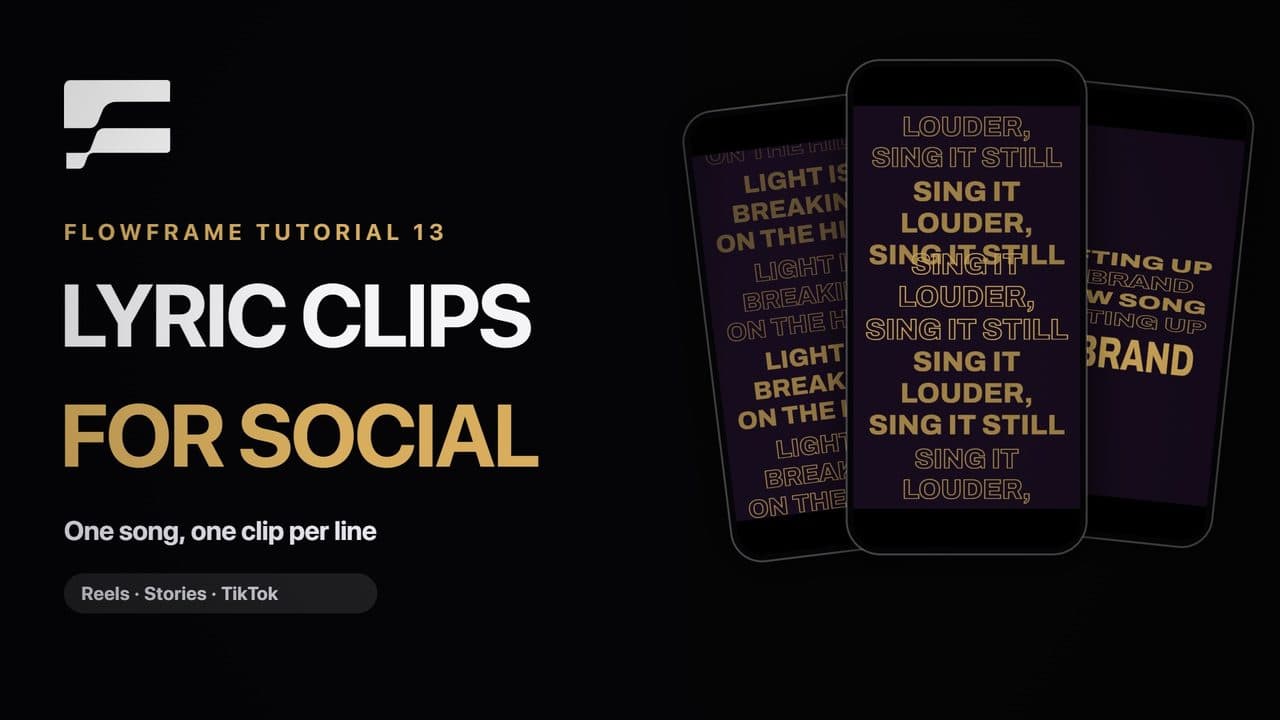
Tutorial 13Length 1:07
Lyric clip packs for social
Press Ctrl K (⌘K on a Mac), choose Lyric clip pack and paste the song: every line gets a motion of its own. Pick 9:16 and download one numbered clip per line in a single zip for Reels, Stories and TikTok.
Chapters(3)
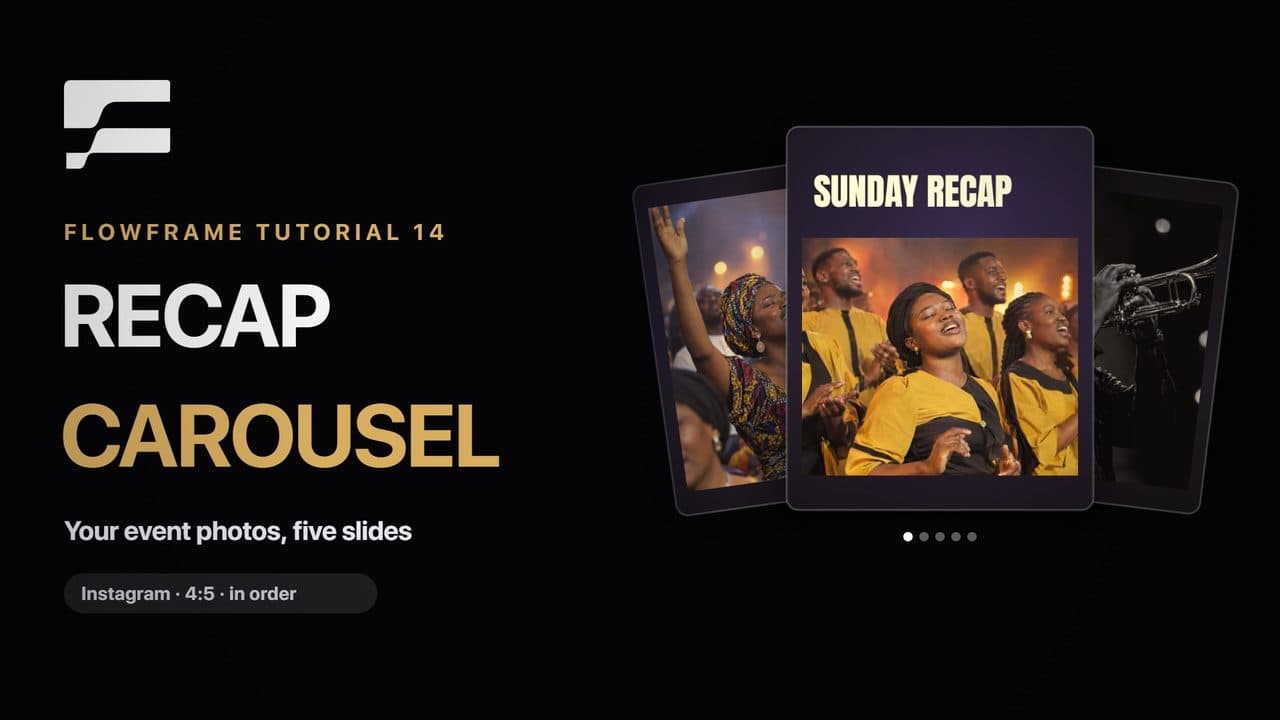
Tutorial 14Length 1:13
Build a recap carousel
Turn your event photos into a five-slide recap: a photo on each slide, a cut-out across the join, words and one filter so every slide matches. Export saves one numbered file per slide, ready to post in order.
Chapters(4)